Check your website with INFOnline myAudit
myAudit – Verify the Consent-Free Measurement on Your Services
myAudit is our tool for real-time quality assurance of your integration of the consent-free INFOnline Measurement. You can reliably test our measurement — without in-depth technical knowledge or the analysis of complex log files.
With myAudit, both native and hybrid mobile apps (iOS and Android) as well as websites can be checked for the correct integration and functionality of our measurement technology.
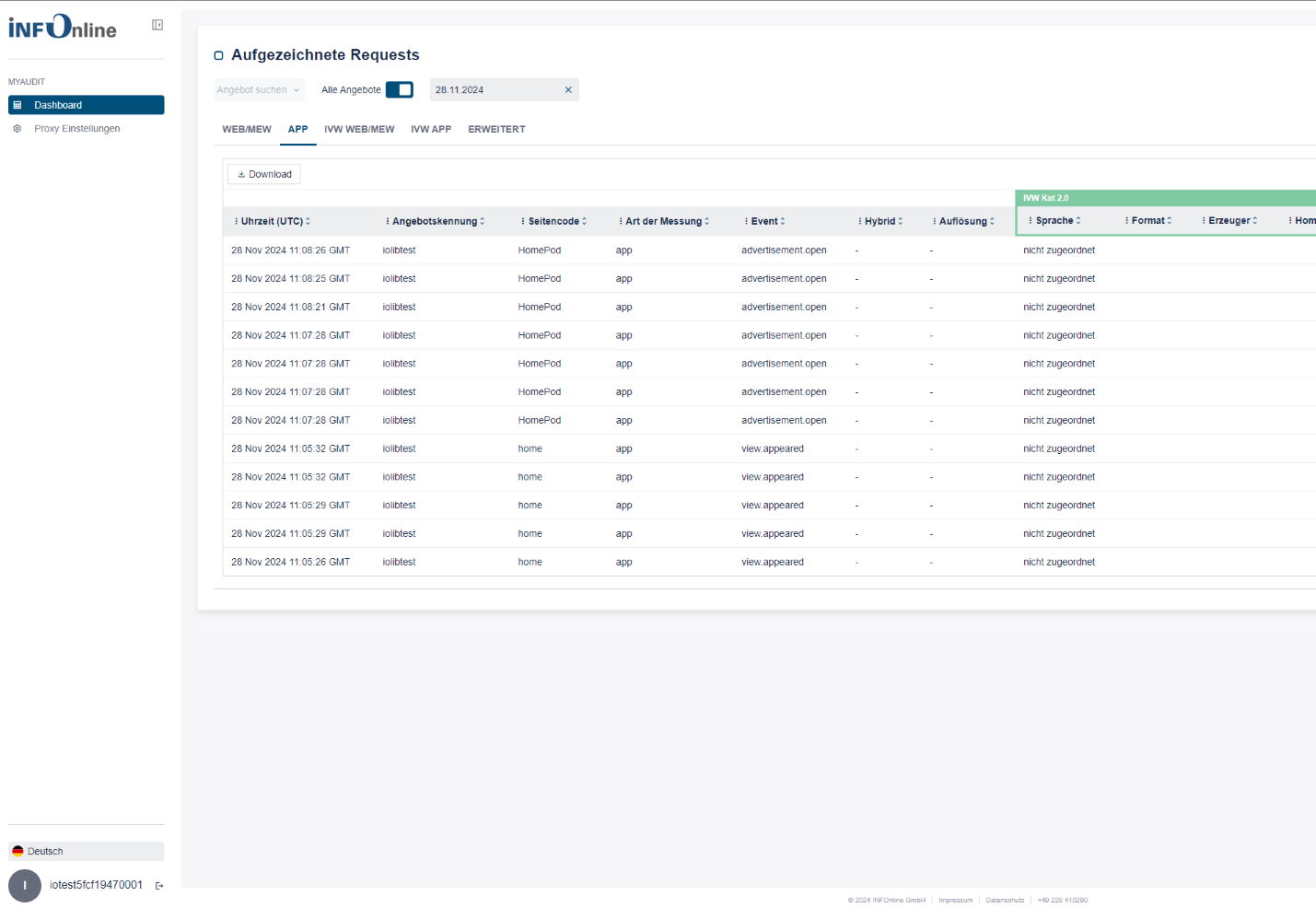
Activation is simple and straightforward: it is done by setting up a tester marking on your test device. For this, we use a VPN tunnel through the free WireGuard app, which redirects your test requests into a separate testing environment.
Note: Consent to Data Processing
By marking your device, you consent to the processing of data transmitted from the marked device into INFOnline’s systems.
To stop this processing, you must remove the device marking as described below.
We recommend deactivating the marking after each test session.
The characteristics of the measurement systems impose specific requirements on the test scenario. The following chapters describe the dependencies and related questions in detail:
- Preparation: How can I access myAudit and what do I need to consider?
- Device Marking: How can a device be marked as a tester?
- Testing: How can data be viewed safely and in real time?
Preparation
To prepare for testing, log in to the INFOnline Customer Center using your offer or customer login credentials and retrieve your login data for myAudit there.
If you log in using your customer login, you must first select one of your offer identifiers in the ‘Offer’ dropdown menu at the top right.
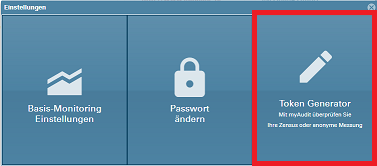
You will find the login data for myAudit under Settings in the Token Generator.
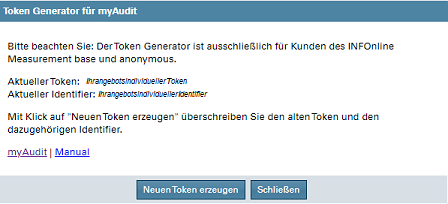
Based on your selected offer identifier, the Token Generator displays the following:
-
Current Token
Each offer identifier can use only one active token.
This token is required to set up the tester marking.
To replace the current token with a new one, simply click the ‘Generate new token’ button.
You can normally continue to use a token for subsequent test runs of the same offer identifier.
It is not necessary to generate a new token from a system perspective — we recommend doing so only in exceptional cases. -
Current Identifier
The identifier is always uniquely associated with a token and is required for tester verification and login to the myAudit web frontend.
Using myAudit via External Service Providers
The token, identifier, and offer identifier are required for your test and can be used independently of the Customer Center login.
This allows service providers you have commissioned to test your measurement implementation without gaining access to additional data.
*Please note that the data shown in the screenshots are demo data.
myAudit - Alternative Tester Marking for Websites
In addition to the standard tester marking method via the WireGuard VPN app, website requests can alternatively be marked manually.
For this purpose, a custom user agent must be created directly in the browser and enriched with the myAudit token of your offer identifier from the INFOnline Customer Center.
Mobile websites (MEW) can usually only be simulated via the user agent switcher of the respective browser.
Checklist for Alternative Website Testing
One-time setup per offer identifier
1. Log in to the INFOnline Customer Center with your offer or customer login (customer login only: select offer identifier).
2. Open the Token Generator via Settings (gear icon at the top right).
3. Copy the token (generate it if using for the first time).
4. Add the token as an additional user agent (web) in your browser.
Testing
1. Log in to myAudit in a browser on any device using the offer identifier and the identifier of the myAudit token.
2. Open browser tabs for testing.
3. Activate the test user agent in the browser tabs (F12).
4. Generate test requests on your website with the active test user agent in the browser tab and check them in the myAudit frontend.
Test Marking with a Custom User Agent
The myAudit token of your offer identifier from the Token Manager in the INFOnline Customer Center must be appended to a custom user agent string.
To create a new user agent in your browser, we recommend using the integrated browser function.
All common modern browsers include a user agent switcher that allows you to create your own user agent and select it for your test sessions.
Using Google Chrome and Mozilla Firefox as examples, we will show you how to set up the custom user agent.
Creating a Custom User Agent – Google Chrome
Below is a step-by-step guide on how to prepare your Google Chrome browser for testing with myAudit.
- Open Developer Tools (F12)
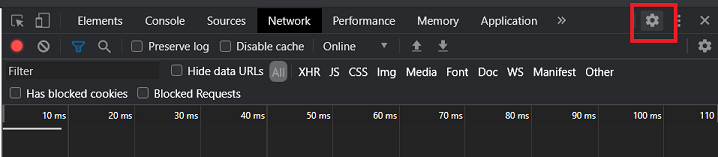
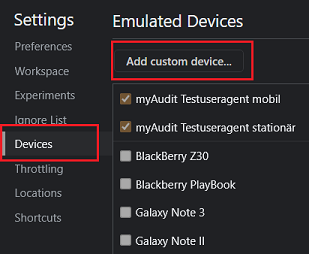
- Select Settings → Devices → Add custom device.
The user agent must be configured once in the browser.
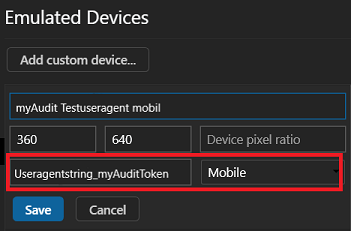
- Create the Custom User Agent – Fill out the following fields and save:
Device Name: You can choose any name (e.g., IOMaTestmobile)User agent string: Enter your current valid user agent string and append the myAudit token here (UserAgentString_Token)Screen size: Set any resolution depending on your test scenarioDevice type: Choose “Mobile” or “Desktop” depending on your test scenario
Use a Valid Chrome User Agent String
The user agent string is essential for a successful test. It must include both a valid user agent and your offer’s myAudit token.
Example: Mozilla/5.0 (Windows NT 10.0; Win64; x64) AppleWebKit/537.36 (KHTML, like Gecko) Chrome/139.0.0.0 Safari/537.36_yourmyaudittoken
- List the User Agent for Quick Selection
Under Emulated Devices, check the box next to the new user agent.
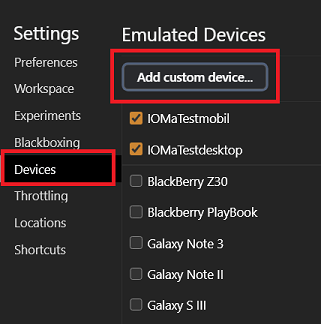
- Activate the Custom User Agent
Once the new user agent is selected, it will be used for the active browser tab and mark the measurement requests for your test.
Your test requests will now appear in myAudit.

Creating a Custom User Agent – Mozilla Firefox
Below is a step-by-step guide on how to prepare your Mozilla Firefox browser for testing with myAudit.
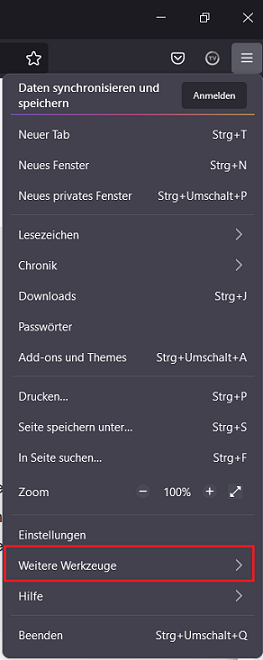
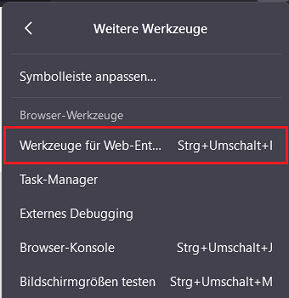
- Open Settings ("hamburger menu") → More Options → Web Developer Tools (Ctrl + Shift + I)
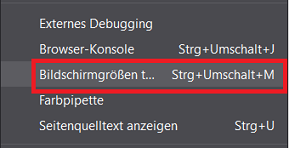
- Select “Responsive Design Mode” (Ctrl + Shift + M)
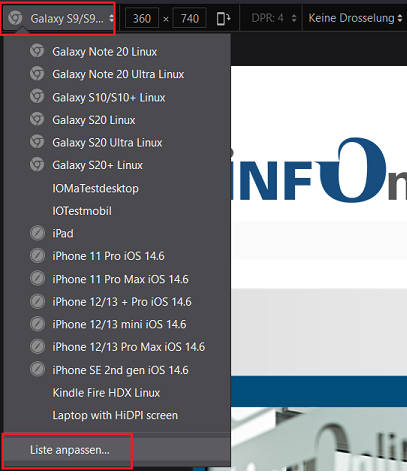
- Activate Custom Device: Use the dropdown menu and select Edit list.
- Click “Add Custom Device”
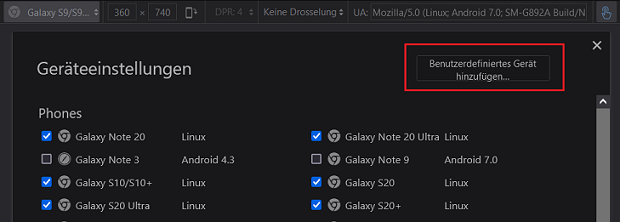
- Create Custom Device – Fill out the following fields and save:
Name: You can choose any name (e.g., IOMaTestmobile)User-Agent String: Enter your current token hereSize: Set any resolution depending on your test scenario
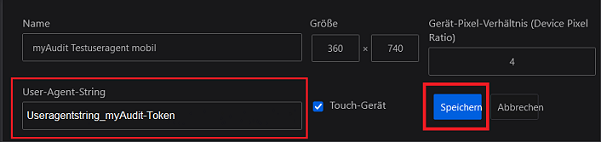
Use a Valid Firefox User Agent String
The user agent string is essential for a successful test. It must include both a valid user agent and your offer’s myAudit token.
Example: Mozilla/5.0 (Windows NT 10.0; Win64; x64; rv:142.0) Gecko/20100101 Firefox/142.0_yourmyaudittoken
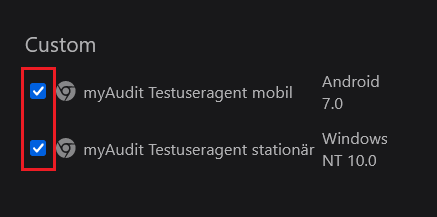
- List Custom Device for Quick Selection
Scroll down in the device list to find your custom user agents under “Custom”.
Check the boxes and close the list with the “x” icon.
Your user agents will now appear in the quick selection menu.
- Use Custom User Agent / Device via Quick Selection
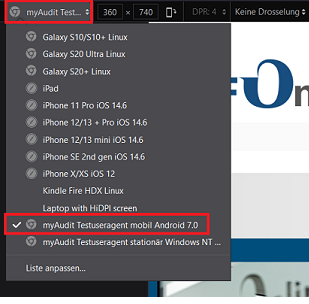
End Test
The custom user agent will be active until you close the “Responsive Design Mode” (e.g., via the “x” icon).
As long as you do not close it or leave the configured browser tab, testing can continue.
Testing Mobile-Enabled Websites (MEW) and Google AMP Articles
The mobile version of your website can also be tested via the browser’s user agent switcher on your computer.
For this, you must (additionally) create and select a mobile custom user agent.
It is especially important that the user agent string contains a valid mobile user agent — for example, that of a current mobile Google Chrome.
The token for tester marking can then be appended to this valid mobile user agent string (UserAgentString_Token).
Example of a User Agent String
Mozilla/5.0 (Linux; Android 10) AppleWebKit/537.36 (KHTML, like Gecko) Chrome/96.0.4664.104 Mobile Safari/537.36_mymyaudittoken
Mobile User Agent String
If no valid mobile user agent string is used in addition to the myAudit token, the mobile environment may not be correctly recognized.
This is especially critical when testing Google AMP articles, as Google Search only serves AMP articles for mobile requests.
Therefore, a valid mobile user agent must be recognized.